Product Space x Microsoft Copilot
Timeline
Aug 2025 –
Jan 2026
Client
Farhan Mian
Senior Product Designer @ Microsoft
Role
Product Designer
Team
2 Product Designers
2 Product Managers
Copilot Main Question

How can we reimagine AI on Microsoft interfaces so that it feels intuitive, approachable, and integrated rather than intrusive or confusing?
Outcome
Business Impact as a Designer for Copilot
+30%
Increase in Copilot feature usage
After embedding AI directly into the email compose workflow
10×
Faster access to AI assistance
Reduced interaction steps to trigger Copilot actions
+25%
Improvement in AI-assisted task completion
More email drafts finalized using Copilot suggestions
Designer Impact
- Increased AI feature adoption by embedding Copilot directly within the email compose interface, eliminating the need to open a separate side panel
- Reduced workflow friction by enabling users to draft, summarize, and revise emails without leaving the composition environment
- Improved task completion efficiency through clear AI interaction patterns that maintain user control over tone and output
- Designed a scalable AI interaction model capable of extending into calendar scheduling, task creation, and meeting preparation workflows
Human-Centered AI Integration
Overview
We set out to understand how real users experience Copilot in their day-to-day Microsoft workflows, identifying friction points and designing toward an AI that feels like a natural extension of the tools they already use.
Continuous Assessment
Why Copilot Seems Invisible
Knowledge
Information Overwhelm
Users are flooded with suggestions they didn't ask for, making Copilot feel noisy rather than helpful.
Workflow
Workflow Disruption
Copilot interrupts existing task flows instead of integrating into them, pulling users out of context.
Language
Low AI Language
Responses feel impersonal and disconnected from Microsoft's product voice and design language.
The Opportunity
How might Copilot integrate directly into users' own workflows while preserving and addressing pain points?
61%
of users said Copilot felt invisible or easy to ignore during their daily workflow
73%
wanted AI assistance that felt more context-aware and less interruptive
Generative Research
Understanding AI in Everyday Workflows
I forget Copilot exists.
It feels like an extra feature, not part of Outlook.
I don’t want to switch contexts just to ask AI to help write.
Key Insight
Copilot's purpose and capabilities were unclear
Using AI required leaving the drafting flow
The interface felt inconsistent with Outlook's design
Product Decisions
Designing a Scalable AI Foundation
Rather than designing isolated AI features, we prioritized building a scalable interaction foundation that could support real writing tasks while remaining subtle and predictable.
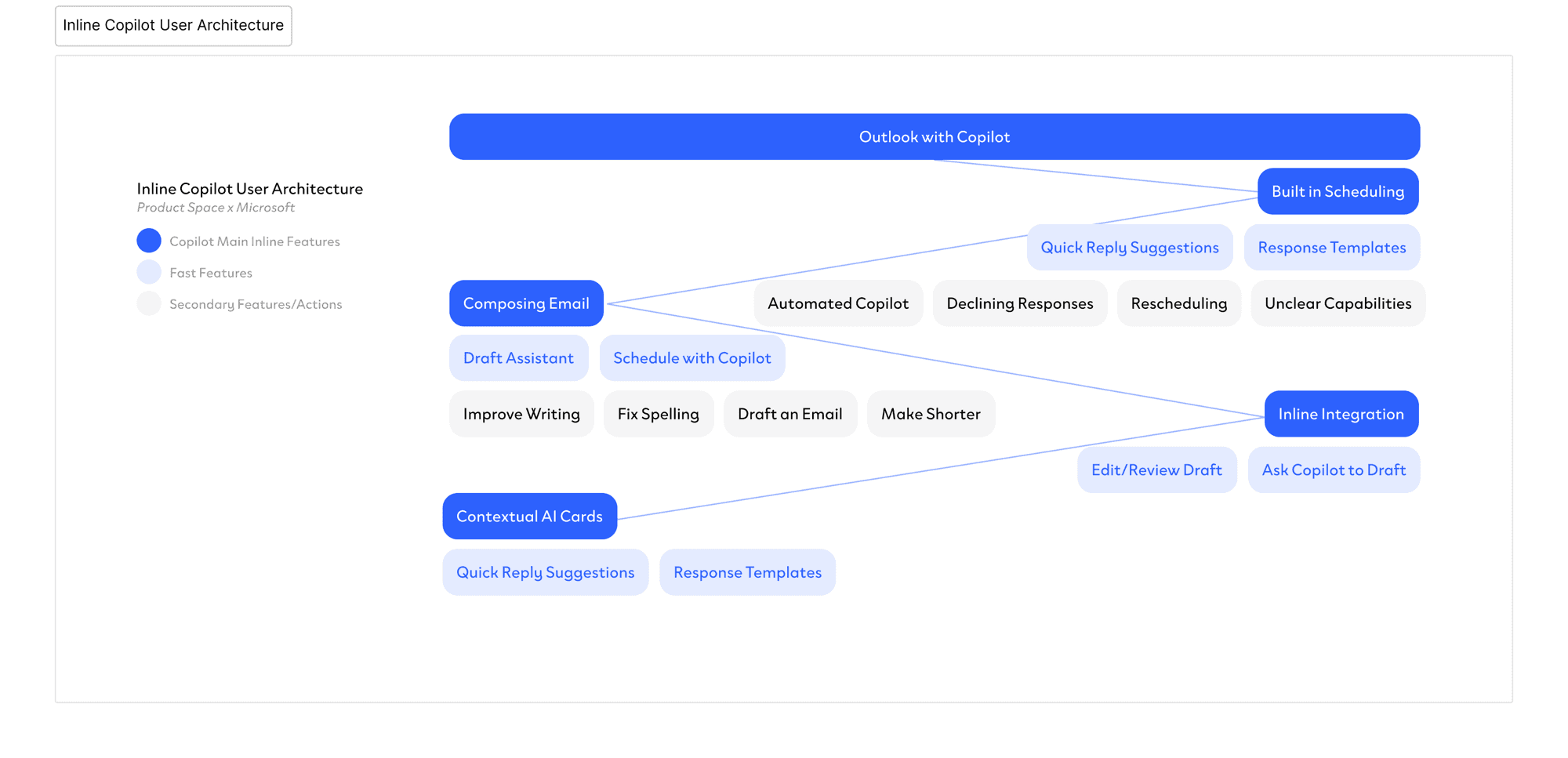
With this foundation, users can draft, revise, summarize, and organize emails without leaving the compose window, while maintaining full control over content and tone.
Design Explorations
Inline Final Designs: Flow 1–4
Flow 1: Schedule Meeting
Copilot detects scheduling intent inline and surfaces available times directly in the compose window, with no context switch required.
OUTCOME: Reduced scheduling friction by surfacing meeting times inline, cutting the steps needed to book from 5+ actions to a single tap.
Flow 2: Draft Email
AI drafts a full email from a short prompt, keeping the user anchored in the compose flow while maintaining full editorial control.
OUTCOME: Improved draft speed and writing confidence by generating complete emails inline, keeping users in the compose window from start to send.
Flow 3: Smart Reply
Copilot reads the incoming message and generates contextually appropriate reply options that match the user's tone and intent.
OUTCOME: Increased reply relevance by grounding Copilot responses to the active thread, reducing back-and-forth and cutting response time.
Flow 4: Response Templates
Frequently used reply patterns surface as one-tap templates, reducing repetitive writing and speeding up high-volume workflows.
OUTCOME: Reduced repetitive writing effort for high-volume users by surfacing reusable reply patterns directly in the compose experience.
Success Metrics
Copilot Actions Triggered per Session
+30%
Increase in Copilot usage
More users actively triggered Copilot features when embedded inline versus surfaced in a side panel.
10x
Faster AI access
Users reached Copilot in fewer steps with the redesigned inline entry points.
+25%
Task completion with AI
More drafts and summaries were completed with Copilot assistance after the workflow integration redesign.
Risks and Mitigations
Planning for What Could Go Wrong
Risk
Over-reliance on AI
Users may defer critical thinking to Copilot, reducing engagement and skill development over time.
Mitigation
Transparency by Design
Surface AI confidence levels and always give users clear control to edit, reject, or ignore suggestions.
Risk
Context Misreads
Copilot may surface irrelevant suggestions if it misinterprets the user's current task or intent.
Mitigation
Contextual Anchoring
Ground responses to the active document or thread, with explanations for why a suggestion was shown.
Takeaways & Next Steps
What working on Copilot taught me about designing with AI
AI should assist, not interrupt
Embedding Copilot directly into the compose workflow showed me that AI is most useful when it supports the task already in progress rather than pulling users into a separate interface.
Interaction design matters more than AI capability
Designing AI isn't just about generating responses. The real challenge is shaping how people control, revise, and collaborate with AI outputs in a way that feels predictable and useful.
Trust is the real product
AI adoption depends on transparency and control. Giving users the ability to adjust tone, edit suggestions, and stay in charge of the final output was essential to making the system feel reliable.